Linux文件管理
整理笔记,一边学习,加油!
一、基本概念 1.1 Linux文件结构介绍
Linux一切皆文件。
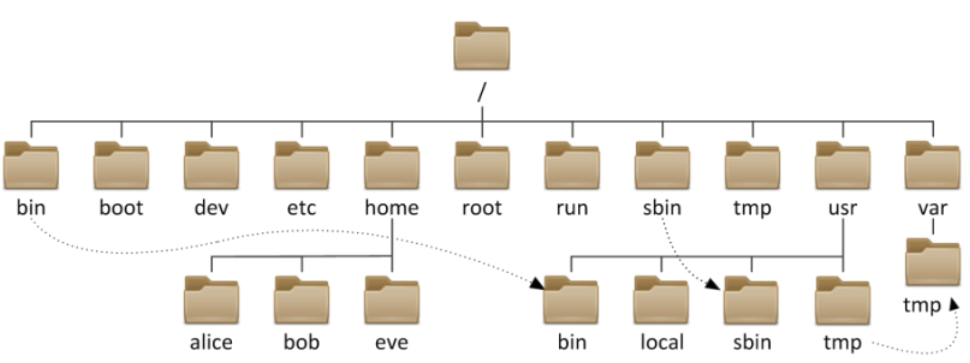
这是一张Linux文件解构示意图,Linux系统下,所有的文件都会挂载到 / 目录下。
每个文件夹的作用
bin 存放二进制命令boot 系统启动相关的文件dev 设备相关的文件,例如 硬盘、U盘等etc 配置类文件home 普通用户的家目录root 超级管理员的家目录run 程序运行时的文件sbin 超级管理员相关的二进制命令tmp 临时目录,任何人都可使用usr 软件安装的目录,类似于windows 上的 program filesproc 内存的映射,是一个虚拟目录mnt 挂载目录,一般挂载到这里opt 常用于安装第三方应用程序……
1.2 路径 1.2.1 家目录 每个用户登录后都会有自己的家目录,作为自己的工作目录。例如 alice 用户的家目录是 /home/alice
1.2.2 上一级目录 Linux下使用 .. 来代表上一级目录
1.2.3 当前目录 Linux下使用 . 来代表当前目录
1.2.4 绝对路径 从根目录 / 开始写的目录,例如 alice 用户的家目录的绝对路径是 /home/alice
1.2.5 相对路径 假如当前的工作目录在/home/bob 目录下,那么 alice 的家目录的绝对路径是 ../alice
二、ls-pwd-cd
最基础的命令。
2.1 ls list 的缩写。查看文件、文件夹信息的一个命令。不加参数的话,默认是查看当前目录的目录。
1
2
3
[root@centos7 ~]# ls 1.TXT anaconda-ks.cfg init.sh nginx-1.12.2-2.el7.x86_64.rpm telnet-0.17-66.el7.x86_64.rpm [root@centos7 ~]#
1 2 3 4 5 6 7 8 9 10 11 12 13 14 15 16 17 18 19 20 21 22 23 24 25 26 27 28 29 30 31 32 33 34 35 36 37 38 39 40 41 42 43 44 45 46 47 48 49 50 51 52 53 54 55 56 57 58 59 60 61 62 63 64 65 66 67 68 69 70 71 72 73 74 75 76 77 78 79 80 81 82 [root@centos7 ~]# ls -a . anaconda-ks.cfg .bash_profile init.sh .tcshrc .. .bash_history .bashrc nginx-1.12.2-2.el7.x86_64.rpm telnet-0.17-66.el7.x86_64.rpm 1.TXT .bash_logout .cshrc .pki .viminfo [root@centos7 ~]# [root@centos7 ~]# ls -l total 612 -rw-r--r-- 1 root root 584 Oct 3 18:12 1.TXT -rw-------. 1 root root 1492 Sep 28 16:07 anaconda-ks.cfg -rw-r--r--. 1 root root 575 Sep 28 16:12 init.sh -rw-r--r-- 1 root root 543132 Jan 18 2021 nginx-1.12.2-2.el7.x86_64.rpm -rw-r--r-- 1 root root 65932 Nov 18 2020 telnet-0.17-66.el7.x86_64.rpm [root@centos7 ~]# [root@centos7 ~]# ls -lh total 612K -rw-r--r-- 1 root root 584 Oct 3 18:12 1.TXT -rw-------. 1 root root 1.5K Sep 28 16:07 anaconda-ks.cfg -rw-r--r--. 1 root root 575 Sep 28 16:12 init.sh -rw-r--r-- 1 root root 531K Jan 18 2021 nginx-1.12.2-2.el7.x86_64.rpm -rw-r--r-- 1 root root 65K Nov 18 2020 telnet-0.17-66.el7.x86_64.rpm [root@centos7 ~]# [root@centos7 ~]# ls -il total 612 67200514 -rw-r--r-- 1 root root 584 Oct 3 18:12 1.TXT 67146820 -rw-------. 1 root root 1492 Sep 28 16:07 anaconda-ks.cfg 67146828 -rw-r--r--. 1 root root 575 Sep 28 16:12 init.sh 67193653 -rw-r--r-- 1 root root 543132 Jan 18 2021 nginx-1.12.2-2.el7.x86_64.rpm 67193656 -rw-r--r-- 1 root root 65932 Nov 18 2020 telnet-0.17-66.el7.x86_64.rpm [root@centos7 ~]# [root@centos7 ~]# ls -Sl total 612 -rw-r--r-- 1 root root 543132 Jan 18 2021 nginx-1.12.2-2.el7.x86_64.rpm -rw-r--r-- 1 root root 65932 Nov 18 2020 telnet-0.17-66.el7.x86_64.rpm -rw-------. 1 root root 1492 Sep 28 16:07 anaconda-ks.cfg -rw-r--r-- 1 root root 584 Oct 3 18:12 1.TXT -rw-r--r--. 1 root root 575 Sep 28 16:12 init.sh [root@centos7 ~]# [root@centos7 ~]# ls -Slr total 612 -rw-r--r--. 1 root root 575 Sep 28 16:12 init.sh -rw-r--r-- 1 root root 584 Oct 3 18:12 1.TXT -rw-------. 1 root root 1492 Sep 28 16:07 anaconda-ks.cfg -rw-r--r-- 1 root root 65932 Nov 18 2020 telnet-0.17-66.el7.x86_64.rpm -rw-r--r-- 1 root root 543132 Jan 18 2021 nginx-1.12.2-2.el7.x86_64.rpm [root@centos7 ~]# [root@centos7 ~]# ls -tl total 612 -rw-r--r-- 1 root root 584 Oct 3 18:12 1.TXT -rw-r--r--. 1 root root 575 Sep 28 16:12 init.sh -rw-------. 1 root root 1492 Sep 28 16:07 anaconda-ks.cfg -rw-r--r-- 1 root root 543132 Jan 18 2021 nginx-1.12.2-2.el7.x86_64.rpm -rw-r--r-- 1 root root 65932 Nov 18 2020 telnet-0.17-66.el7.x86_64.rpm [root@centos7 ~]# [root@centos7 ~]# ls -ld dr-xr-x---. 3 root root 265 Oct 3 18:12 . [root@centos7 ~]# [root@centos7 ~]# ls -l --time-style=long-iso total 544 -rw------- 1 root root 1492 2025-09-28 16:07 anaconda-ks.cfg drwxr-xr-x 2 root root 38 2025-10-05 14:04 dir1 -rw-r--r-- 1 root root 575 2025-10-05 13:38 init.sh -rw-r--r-- 1 root root 543132 2021-01-18 21:09 nginx.rpm -rw------- 1 root root 3471 2025-10-04 22:59 sshd_config [root@centos7 ~]#
2.2 pwd print work directory 的缩写,输出当前所在的工作目录。
1
2
3
[root@centos7 ~]# pwd /root [root@centos7 ~]#
2.3 cd change directory 的缩写,改变工作目录。不加参数,默认回到家目录。
~ 家目录
- 上一次的工作目录
. 代表当前目录
.. 代表上一级目录
1 2 3 4 5 6 7 8 9 10 11 12 13 14 15 16 17 18 19 20 21 22 23 24 25 26 27 28 29 30 31 32 33 34 35 36 [root@centos7 ~]# cd [root@centos7 ~]# pwd /root [root@centos7 ~]# [root@centos7 ~]# cd / [root@centos7 /]# pwd / [root@centos7 /]# [root@centos7 /]# cd ~ [root@centos7 ~]# pwd /root [root@centos7 ~]# [root@centos7 ~]# cd . [root@centos7 ~]# pwd /root [root@centos7 ~]# [root@centos7 ~]# cd .. [root@centos7 /]# pwd / [root@centos7 /]# root@centos7 /]# cd - /root [root@centos7 ~]# pwd /root [root@centos7 ~]#
三、touch-mkdir-rmdir-rm
创建和删除
3.1 touch 创建文件的命令。
文件不存在的话,会创建新文件;
文件存在的话,会刷新文件的访问时间atime。
1 2 3 4 5 6 7 8 9 10 11 12 13 14 15 16 17 18 [root@centos7 ~]# touch 1.txt [root@centos7 ~]# ls -l 1.txt -rw-r--r-- 1 root root 0 Oct 4 12:49 1.txt [root@centos7 ~]# [root@centos7 ~]# touch file{20..29}.txt [root@centos7 ~]# ls file2* file20.txt file22.txt file24.txt file26.txt file28.txt file21.txt file23.txt file25.txt file27.txt file29.txt [root@centos7 ~]# [root@centos7 ~]# touch file{30,31}.txt [root@centos7 ~]# ls file3* file30.txt file31.txt [root@centos7 ~]#
{1..10} 代表1-10{1,2,3} 代表 1,2,3
这种形式的命令,会展开后作为参数传递给命令。
3.2 mkdir make directory 的缩写,创建一个文件夹。
1 2 3 4 5 6 7 8 9 10 11 12 13 14 15 16 17 [root@centos7 ~]# mkdir dir1 [root@centos7 ~]# ls anaconda-ks.cfg dir1 init.sh nginx-1.12.2-2.el7.x86_64.rpm telnet-0.17-66.el7.x86_64.rpm [root@centos7 ~]# [root@centos7 ~]# mkdir dir2/dir2/dir2 mkdir : cannot create directory ‘dir2/dir2/dir2’: No such file or directory[root@centos7 ~]# [root@centos7 ~]# mkdir dir2/dir2/dir2 -p [root@centos7 ~]# ls dir2/dir2/ -l total 0 drwxr-xr-x 2 root root 6 Oct 4 12:59 dir2 [root@centos7 ~]#
3.3 rmdir remove directory 的缩写,删除空文件夹。
1 2 3 4 5 6 [root@centos7 ~]# ls -l |grep dir1 drwxr-xr-x 2 root root 6 Oct 4 12:57 dir1 [root@centos7 ~]# rmdir dir1 [root@centos7 ~]# ls -l |grep dir1 [root@centos7 ~]#
3.4 rm remove 的缩写,用于删除文件、文件夹。
-r 递归删除。一般作用域文件夹。-f 强制删除,不提示。默认删除每个文件都需要输入y 确认。
1 2 3 4 5 6 7 [root@centos7 ~]# ls anaconda-ks.cfg dir2 init.sh nginx-1.12.2-2.el7.x86_64.rpm telnet-0.17-66.el7.x86_64.rpm [root@centos7 ~]# rm -rf dir2/ [root@centos7 ~]# ls anaconda-ks.cfg init.sh nginx-1.12.2-2.el7.x86_64.rpm telnet-0.17-66.el7.x86_64.rpm [root@centos7 ~]#
四、mv-cp
移动哈拷贝。
4.1 mv move 的缩写。移动文件、文件夹的命令。
如果源路径、目的路径在同一个目录下,那就是重命名的效果。
1 2 3 4 5 6 7 8 9 10 11 12 13 14 15 16 17 18 19 20 21 22 23 [root@centos7 ~]# ls anaconda-ks.cfg init.sh nginx-1.12.2-2.el7.x86_64.rpm telnet-0.17-66.el7.x86_64.rpm [root@centos7 ~]# mv nginx-1.12.2-2.el7.x86_64.rpm nginx.rpm [root@centos7 ~]# ls anaconda-ks.cfg init.sh nginx.rpm telnet-0.17-66.el7.x86_64.rpm [root@centos7 ~]# [root@centos7 ~]# ls anaconda-ks.cfg init.sh nginx.rpm telnet-0.17-66.el7.x86_64.rpm [root@centos7 ~]# mv telnet-0.17-66.el7.x86_64.rpm /tmp [root@centos7 ~]# ls /tmp . .: anaconda-ks.cfg init.sh nginx.rpm /tmp: ks-script-0vwe6q vmware-root_699-3979839557 yum_save_tx.2025-10-03.17-33.25eehG.yumtx telnet-0.17-66.el7.x86_64.rpm yum.log yum_save_tx.2025-10-03.17-36.i6P5K9.yumtx vmware-root_667-3980363901 yum_save_tx.2025-09-28.16-19.CJz_n2.yumtx yum_save_tx.2025-10-03.17-37.JJW2AO.yumtx vmware-root_673-3988556249 yum_save_tx.2025-10-03.17-29._CS0XL.yumtx yum_save_tx.2025-10-03.17-39.wN2qC0.yumtx vmware-root_680-2689143817 yum_save_tx.2025-10-03.17-31.MI7XeH.yumtx [root@centos7 ~]#
4.2 cp copy 的缩写。复制文件或文件夹。目的必须是路径。
1
2
3
4
5
6
7
8
9
10
11
12
13
14
15
16
17
18
19
20
21
22
23
24
25
26
27
28
29
30
31
32
33
34
35
36
37
38
39
40
41
[root@centos7 ~]# ls . /tmp -l .: total 540 -rw-------. 1 root root 1492 Sep 28 16:07 anaconda-ks.cfg drwxr-xr-x 2 root root 19 Oct 4 13:20 dir1 -rw-r--r--. 1 root root 575 Sep 28 16:12 init.sh -rw-r--r-- 1 root root 543132 Jan 18 2021 nginx.rpm /tmp: total 0 [root@centos7 ~]# cp nginx.rpm /tmp/ [root@centos7 ~]# ls . /tmp -l .: total 540 -rw-------. 1 root root 1492 Sep 28 16:07 anaconda-ks.cfg drwxr-xr-x 2 root root 19 Oct 4 13:20 dir1 -rw-r--r--. 1 root root 575 Sep 28 16:12 init.sh -rw-r--r-- 1 root root 543132 Jan 18 2021 nginx.rpm /tmp: total 532 -rw-r--r-- 1 root root 543132 Oct 4 13:20 nginx.rpm [root@centos7 ~]# [root@centos7 ~]# cp -r dir1/ /tmp/ [root@centos7 ~]# ls . /tmp -l .: total 540 -rw-------. 1 root root 1492 Sep 28 16:07 anaconda-ks.cfg drwxr-xr-x 2 root root 19 Oct 4 13:20 dir1 -rw-r--r--. 1 root root 575 Sep 28 16:12 init.sh -rw-r--r-- 1 root root 543132 Jan 18 2021 nginx.rpm /tmp: total 532 drwxr-xr-x 2 root root 19 Oct 4 13:21 dir1 -rw-r--r-- 1 root root 543132 Oct 4 13:20 nginx.rpm [root@centos7 ~]#
五、cat-head-tail-more-less 5.1 cat 查看文本文件。
1 2 3 4 5 6 7 8 9 10 11 12 13 14 15 16 17 18 19 20 21 22 23 24 25 26 27 28 29 30 31 32 33 34 35 36 37 38 39 40 41 42 43 44 45 46 47 48 49 50 51 52 53 54 55 56 57 58 59 60 61 62 63 64 65 66 67 68 69 70 71 72 73 74 75 [root@centos7 ~]# cat /etc/passwd root:x:0:0:root:/root:/bin/bash bin:x:1:1:bin:/bin:/sbin/nologin daemon:x:2:2:daemon:/sbin:/sbin/nologin adm:x:3:4:adm:/var/adm:/sbin/nologin lp:x:4:7:lp:/var/spool/lpd:/sbin/nologin sync :x:5:0:sync :/sbin:/bin/syncshutdown:x:6:0:shutdown:/sbin:/sbin/shutdown halt:x:7:0:halt:/sbin:/sbin/halt mail:x:8:12:mail:/var/spool/mail:/sbin/nologin operator:x:11:0:operator:/root:/sbin/nologin games:x:12:100:games:/usr/games:/sbin/nologin ftp:x:14:50:FTP User:/var/ftp:/sbin/nologin nobody:x:99:99:Nobody:/:/sbin/nologin systemd-network:x:192:192:systemd Network Management:/:/sbin/nologin dbus:x:81:81:System message bus:/:/sbin/nologin polkitd:x:999:998:User for polkitd:/:/sbin/nologin sshd:x:74:74:Privilege-separated SSH:/var/empty/sshd:/sbin/nologin postfix:x:89:89::/var/spool/postfix:/sbin/nologin qiankong:x:1000:1000:qiankong:/home/qiankong:/bin/bash [root@centos7 ~]# cat /etc/passwd root:x:0:0:root:/root:/bin/bash bin:x:1:1:bin:/bin:/sbin/nologin daemon:x:2:2:daemon:/sbin:/sbin/nologin adm:x:3:4:adm:/var/adm:/sbin/nologin lp:x:4:7:lp:/var/spool/lpd:/sbin/nologin sync :x:5:0:sync :/sbin:/bin/syncshutdown:x:6:0:shutdown:/sbin:/sbin/shutdown halt:x:7:0:halt:/sbin:/sbin/halt mail:x:8:12:mail:/var/spool/mail:/sbin/nologin operator:x:11:0:operator:/root:/sbin/nologin games:x:12:100:games:/usr/games:/sbin/nologin ftp:x:14:50:FTP User:/var/ftp:/sbin/nologin nobody:x:99:99:Nobody:/:/sbin/nologin systemd-network:x:192:192:systemd Network Management:/:/sbin/nologin dbus:x:81:81:System message bus:/:/sbin/nologin polkitd:x:999:998:User for polkitd:/:/sbin/nologin sshd:x:74:74:Privilege-separated SSH:/var/empty/sshd:/sbin/nologin postfix:x:89:89::/var/spool/postfix:/sbin/nologin qiankong:x:1000:1000:qiankong:/home/qiankong:/bin/bash yangge:x:1001:1001::/home/yangge:/bin/bash rpc:x:32:32:Rpcbind Daemon:/var/lib/rpcbind:/sbin/nologin rpcuser:x:29:29:RPC Service User:/var/lib/nfs:/sbin/nologin nfsnobody:x:65534:65534:Anonymous NFS User:/var/lib/nfs:/sbin/nologin apache:x:48:48:Apache:/usr/share/httpd:/sbin/nologin [root@centos7 ~]# [root@centos7 ~]# cat -n /etc/passwd 1 root:x:0:0:root:/root:/bin/bash 2 bin:x:1:1:bin:/bin:/sbin/nologin 3 daemon:x:2:2:daemon:/sbin:/sbin/nologin 4 adm:x:3:4:adm:/var/adm:/sbin/nologin 5 lp:x:4:7:lp:/var/spool/lpd:/sbin/nologin 6 sync :x:5:0:sync :/sbin:/bin/sync 7 shutdown:x:6:0:shutdown:/sbin:/sbin/shutdown 8 halt:x:7:0:halt:/sbin:/sbin/halt 9 mail:x:8:12:mail:/var/spool/mail:/sbin/nologin 10 operator:x:11:0:operator:/root:/sbin/nologin 11 games:x:12:100:games:/usr/games:/sbin/nologin 12 ftp:x:14:50:FTP User:/var/ftp:/sbin/nologin 13 nobody:x:99:99:Nobody:/:/sbin/nologin 14 systemd-network:x:192:192:systemd Network Management:/:/sbin/nologin 15 dbus:x:81:81:System message bus:/:/sbin/nologin 16 polkitd:x:999:998:User for polkitd:/:/sbin/nologin 17 sshd:x:74:74:Privilege-separated SSH:/var/empty/sshd:/sbin/nologin 18 postfix:x:89:89::/var/spool/postfix:/sbin/nologin 19 qiankong:x:1000:1000:qiankong:/home/qiankong:/bin/bash 20 yangge:x:1001:1001::/home/yangge:/bin/bash 21 rpc:x:32:32:Rpcbind Daemon:/var/lib/rpcbind:/sbin/nologin 22 rpcuser:x:29:29:RPC Service User:/var/lib/nfs:/sbin/nologin 23 nfsnobody:x:65534:65534:Anonymous NFS User:/var/lib/nfs:/sbin/nologin 24 apache:x:48:48:Apache:/usr/share/httpd:/sbin/nologin [root@centos7 ~]#
5.2 head 查看文本文件的的头信息。
1 2 3 4 5 6 7 8 9 10 11 12 13 14 15 16 17 18 19 20 21 22 [root@centos7 ~]# head /etc/passwd root:x:0:0:root:/root:/bin/bash bin:x:1:1:bin:/bin:/sbin/nologin daemon:x:2:2:daemon:/sbin:/sbin/nologin adm:x:3:4:adm:/var/adm:/sbin/nologin lp:x:4:7:lp:/var/spool/lpd:/sbin/nologin sync :x:5:0:sync :/sbin:/bin/syncshutdown:x:6:0:shutdown:/sbin:/sbin/shutdown halt:x:7:0:halt:/sbin:/sbin/halt mail:x:8:12:mail:/var/spool/mail:/sbin/nologin operator:x:11:0:operator:/root:/sbin/nologin [root@centos7 ~]# [root@centos7 ~]# head /etc/passwd -n5 root:x:0:0:root:/root:/bin/bash bin:x:1:1:bin:/bin:/sbin/nologin daemon:x:2:2:daemon:/sbin:/sbin/nologin adm:x:3:4:adm:/var/adm:/sbin/nologin lp:x:4:7:lp:/var/spool/lpd:/sbin/nologin [root@centos7 ~]#
5.3 tail 查看文本文件最后几行。
-n 执行查看几行。默认是10-f 实时查看。一般常用于最新的日志。
1 2 3 4 5 6 7 8 9 10 11 12 13 14 15 16 17 18 19 20 21 22 23 24 25 26 27 28 29 30 [root@centos7 ~]# tail /var/log/secure Oct 3 17:21:15 centos7 groupadd[1949]: new group: name=apache, GID=48 Oct 3 17:21:15 centos7 useradd[1953]: new user: name=apache, UID=48, GID=48, home=/usr/share/httpd, shell=/sbin/nologin Oct 3 17:33:46 centos7 useradd[2009]: failed adding user 'apache' , exit code: 9 Oct 3 18:35:35 centos7 sshd[1373]: pam_unix(sshd:session): session closed for user root Oct 4 12:19:01 centos7 sshd[2228]: Accepted password for root from 192.168.10.1 port 5763 ssh2 Oct 4 12:19:01 centos7 sshd[2228]: pam_unix(sshd:session): session opened for user root by (uid=0) Oct 4 12:19:02 centos7 sshd[2231]: Accepted password for root from 192.168.10.1 port 5766 ssh2 Oct 4 12:19:02 centos7 sshd[2231]: pam_unix(sshd:session): session opened for user root by (uid=0) Oct 4 12:24:37 centos7 sshd[4226]: Accepted password for root from 192.168.10.1 port 7334 ssh2 Oct 4 12:24:37 centos7 sshd[4226]: pam_unix(sshd:session): session opened for user root by (uid=0) [root@centos7 ~]# [root@centos7 ~]# tail -n3 /var/log/secure Oct 4 12:19:02 centos7 sshd[2231]: pam_unix(sshd:session): session opened for user root by (uid=0) Oct 4 12:24:37 centos7 sshd[4226]: Accepted password for root from 192.168.10.1 port 7334 ssh2 Oct 4 12:24:37 centos7 sshd[4226]: pam_unix(sshd:session): session opened for user root by (uid=0) [root@centos7 ~]# [root@centos7 ~]# tail -f /var/log/secure -n1 Oct 4 12:24:37 centos7 sshd[4226]: pam_unix(sshd:session): session opened for user root by (uid=0) Oct 4 13:30:25 centos7 sshd[28013]: Accepted password for root from 192.168.10.1 port 13653 ssh2 Oct 4 13:30:25 centos7 sshd[28013]: pam_unix(sshd:session): session opened for user root by (uid=0) Oct 4 13:30:26 centos7 sshd[28018]: Accepted password for root from 192.168.10.1 port 13654 ssh2 Oct 4 13:30:26 centos7 sshd[28018]: pam_unix(sshd:session): session opened for user root by (uid=0)
5.4 more 分页查看文本文件,查看大文件时可以一页一页查看。
space 空格,向下翻一页。enter 回车键,向下翻一行。q 退出查看
5.5 less more的升级版,功能更加强大,可以向上翻页。
space 空格,向下翻一页。enter 回车键,向下翻一行。q 退出查看b 向上翻一页y 向上翻一行-N 显示行号,这个参数必须在文件名前。g 回到文件开始G 切到文件末尾/ 向下搜索? 向上搜索n 下一个搜索结果N 上一个搜索结果
愈发觉得这些快捷键都是通用的,和vim 一模一样。
六、bash快捷键 有一些好用的快捷键,有些已经内化了,有些还没有。
Ctrl + a 移动光标到行首Ctrl + e 移动光标到行尾Ctrl + r 搜索历史命令Ctrl + u 从光标位置删到行首Ctrl + k 从光标位置删到行尾Esc + . 快速输入上一条命令的最后的参数
七、封面图