磁盘分区
一直想搞这个,也是迟迟为动手,既然列入了今日计划,那就开始吧。
一、磁盘 1.1 分类 硬盘种类,浅分的话,只有两种,机械硬盘、固态硬盘。
细分的话,有太多的分类。固态分好多种,好多种颗粒。
机械硬盘没接触过,10年前家里的笔记本就是固态硬盘。
甚至还有很久之前的软盘,更是看到没看过。
1.2 基本概念 以后懂的时候再填充这一块内容吧。,不得不搞懂,不然分区数量为什么是4个主分区,我都无法理解。
1 fsutil fsinfo ntfsinfo C:
这条命令可以看物理扇区、逻辑扇区 的大小。(需要管理员权限)
二、分区 分区,我的理解是,把硬盘分成不同的区域,重装系统时可以保留部分数据。也可以再不同的分区装上不同的操作系统。
2.1 分区表 分区表,记录分区的信息,从哪到哪是哪个分区。分为两种,MBR、GPT。
MBR,(Master Boot Recard)主引导记录,传统的,旧的分区方式。
GPT,(GUID Partition Table)分区表,新的分区方式。
对比
MBR
GPT
分区数量
最多4个主分区
128个(操作系统限制)
最大支持磁盘容量
2T
9.4ZB
有无备份
无备份
分区表尾部有备份
安全性
无校验
有校验
兼容性
常配合BIOS
常配合UEFI
分区表占用空间
512B(一个扇区)
34个扇区+33个扇区
注 :UEFI是新版的BIOS,支持更多的功能。
2.1.1 MBR 1 2 3 4 5 6 7 8 9 10 11 12 13 flowchart LR classDef region fill:#f8f9fa,stroke:#333,stroke-width:1px; Boot["0x000 - 0x1BD<br/>(0 - 445) 446 字节<br/>引导代码 (Bootstrap)"] P1["分区 1<br/>(0x1BE - 0x1CD)<br/>16 字节<br/>引导标志(1) 起始CHS(3) 类型(1) 结束CHS(3) 起始LBA(4) 扇区数(4)"] P2["分区 2<br/>(0x1CE - 0x1DD)<br/>16 字节<br/>同上"] P3["分区 3<br/>(0x1DE - 0x1ED)<br/>16 字节<br/>同上"] P4["分区 4<br/>(0x1EE - 0x1FD)<br/>16 字节<br/>同上"] Sig["0x1FE - 0x1FF<br/>(510 - 511) 2 字节<br/>启动签名 0x55AA"] Boot --> P1 --> P2 --> P3 --> P4 --> Sig class Boot,P1,P2,P3,P4,Sig region;
MBR共占用 1个扇区。
1-446 字节,引导程序。共446字节
447-510 字节,分区表。共64字节。每个分区占用16字节。 最多有4个主分区。
511-512 字节,启动标志,代表该扇区可以引导。共2字节。
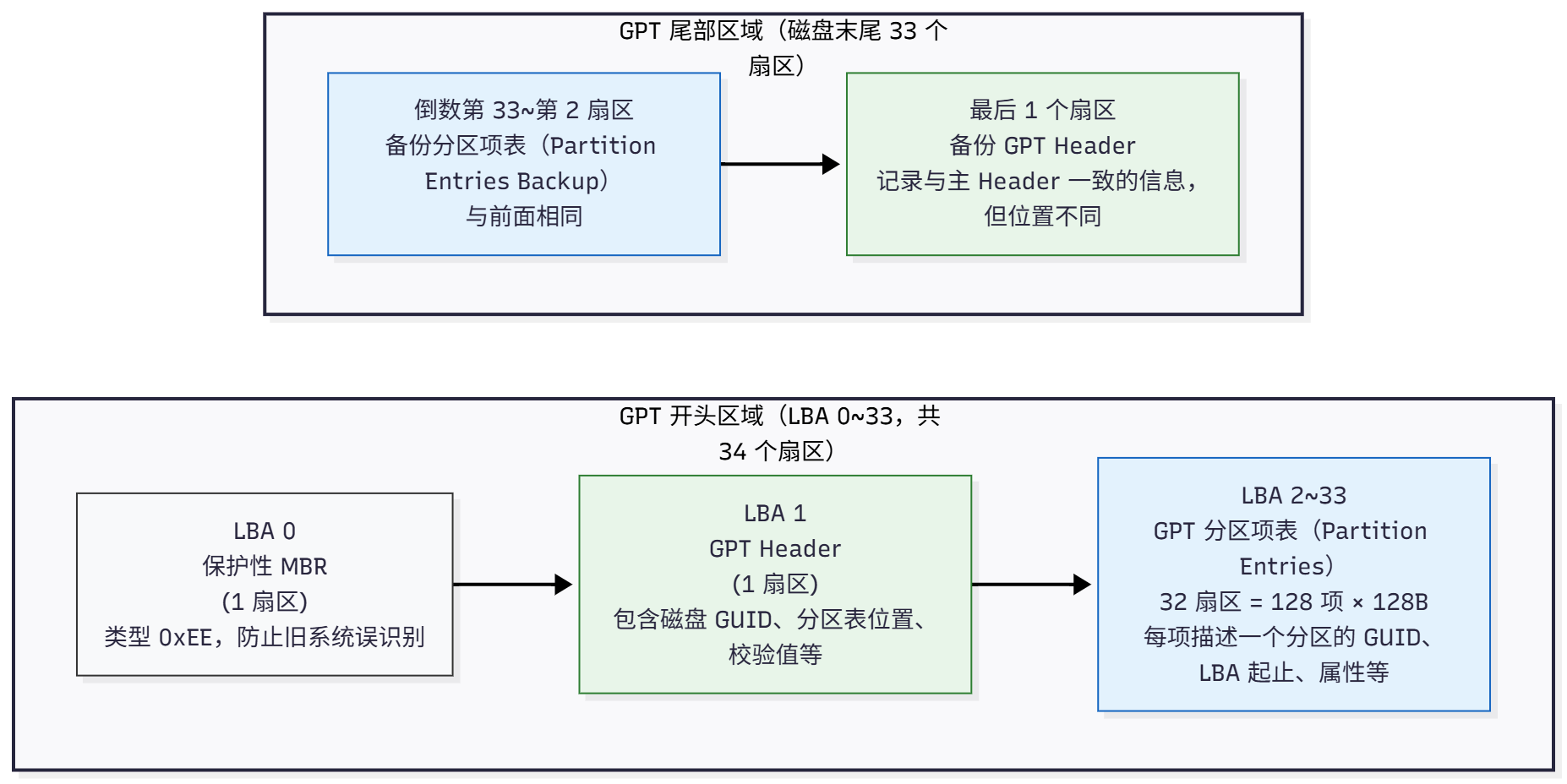
2.1.2 GPT 1 2 3 4 5 6 7 8 9 10 11 12 13 14 15 16 17 18 flowchart LR classDef region fill:#f8f9fa,stroke:#333,stroke-width:1px; classDef hdr fill:#e8f5e9,stroke:#2e7d32,stroke-width:1px; classDef ent fill:#e3f2fd,stroke:#1565c0,stroke-width:1px; subgraph GPT_Head["GPT 开头区域(LBA 0~33,共 34 个扇区)"] direction LR MBR["LBA 0<br/>保护性 MBR<br/>(1 扇区)<br/>类型 0xEE,防止旧系统误识别"]:::region --> GPT_H["LBA 1<br/>GPT Header<br/>(1 扇区)<br/>包含磁盘 GUID、分区表位置、校验值等"]:::hdr --> GPT_E["LBA 2~33<br/>GPT 分区项表(Partition Entries)<br/>32 扇区 = 128 项 × 128B<br/>每项描述一个分区的 GUID、LBA 起止、属性等"]:::ent end subgraph GPT_Tail["GPT 尾部区域(磁盘末尾 33 个扇区)"] direction LR GPT_E2["倒数第 33~第 2 扇区<br/>备份分区项表(Partition Entries Backup)<br/>与前面相同"]:::ent --> GPT_H2["最后 1 个扇区<br/>备份 GPT Header<br/>记录与主 Header 一致的信息,但位置不同"]:::hdr end
GPT共占用 34+33个扇区。
第一个扇区,兼容老系统,不要让旧系统识别为MBR
第二个扇区,GPT表头,记录分区表位置、GUID、校验值等信息。
第 3 - 34 个扇区,分区表。共 32 * 512B 字节,每个分区占用 128 字节 。最多有 128个分区。
尾部有备份
最后一个扇区,和开头区域的GPT 头一模一样。
倒数第 2 - 33 个扇区,备份分区表,与开头的分区表一模一样。
2.2 特殊分区 2.2.1 EFI MBR 把系统引导程序放到第一个扇区 446 字节。
GPT 把系统引导放到 EFI 的分区,主板上的 UEFI 可以发现这个分区。有的软件把这个分区叫做 ESP (EFI System Partition).
2.2.2 MSR MSR(Microsoft Reserved Partition),微软保留分区。16M。
不存放数据,对用户不可见。为系统内部使用(如转换动态磁盘、创建卷快照等)保留空间。
2.3 分区软件
Windows 自带的,右键此电脑,管理,磁盘管理
DiskGenius ,Windows 软件,简称DG 中文官网
fdisk ,Linux 的分区软件,用于分MBR,新版 2.26+ 也可以操作GPT
gdisk ,Linux 的分区软件,只能分GPT
三、Linux分区练习 Linux 下一切皆文件,磁盘也会被映射为 /dev/sd[a-z] 或 /dev/vsd[a-z] 的文件。
3.1 查看磁盘设备 1 2 3 4 5 6 7 8 9 10 11 12 13 14 15 16 17 18 19 root@ubuntu24template:~# lsblk NAME MAJ:MIN RM SIZE RO TYPE MOUNTPOINTS sda 8:0 0 20G 0 disk ├─sda1 8:1 0 1M 0 part ├─sda2 8:2 0 1.8G 0 part /boot └─sda3 8:3 0 18.2G 0 part └─ubuntu--vg-ubuntu--lv 252:0 0 10G 0 lvm / sdb 8:16 0 20G 0 disk sdc 8:32 0 20G 0 disk sr0 11:0 1 3G 0 rom root@ubuntu24template:~# root@ubuntu24template:~# ls -l /dev/sd* brw-rw---- 1 root disk 8, 0 Oct 7 17:41 /dev/sda brw-rw---- 1 root disk 8, 1 Oct 7 17:41 /dev/sda1 brw-rw---- 1 root disk 8, 2 Oct 7 17:41 /dev/sda2 brw-rw---- 1 root disk 8, 3 Oct 7 17:41 /dev/sda3 brw-rw---- 1 root disk 8, 16 Oct 7 17:41 /dev/sdb brw-rw---- 1 root disk 8, 32 Oct 7 17:41 /dev/sdc root@ubuntu24template:~#
3.2 fdisk分区 3.2.1 工具分区
p 输入分区表w 写入分区表n 新建分区表m 输入帮助文档q 退出g 创建GPT分区表,默认是MBRd 删除分区
输出磁盘分区信息
1 2 3 4 5 6 7 8 9 10 11 12 13 14 15 16 17 18 19 root@ubuntu24template:~# fdisk /dev/sdb Welcome to fdisk (util-linux 2.39.3). Changes will remain in memory only, until you decide to write them. Be careful before using the write command . Device does not contain a recognized partition table. Created a new DOS (MBR) disklabel with disk identifier 0x9fd7e3c8. Command (m for help ): p Disk /dev/sdb: 20 GiB, 21474836480 bytes, 41943040 sectors Disk model: VMware Virtual S Units: sectors of 1 * 512 = 512 bytes Sector size (logical/physical): 512 bytes / 512 bytes I/O size (minimum/optimal): 512 bytes / 512 bytes Disklabel type : dos Disk identifier: 0x9fd7e3c8 Command (m for help ):
新建分区并写入
1 2 3 4 5 6 7 8 9 10 11 12 13 14 15 16 17 18 19 20 21 22 23 24 25 26 27 28 29 30 31 Command (m for help ): n Partition type p primary (0 primary, 0 extended, 4 free) e extended (container for logical partitions) Select (default p): Using default response p. Partition number (1-4, default 1): First sector (2048-41943039, default 2048): Last sector, +/-sectors or +/-size{K,M,G,T,P} (2048-41943039, default 41943039): +3G Created a new partition 1 of type 'Linux' and of size 3 GiB. Command (m for help ): p Disk /dev/sdb: 20 GiB, 21474836480 bytes, 41943040 sectors Disk model: VMware Virtual S Units: sectors of 1 * 512 = 512 bytes Sector size (logical/physical): 512 bytes / 512 bytes I/O size (minimum/optimal): 512 bytes / 512 bytes Disklabel type : dos Disk identifier: 0x9fd7e3c8 Device Boot Start End Sectors Size Id Type /dev/sdb1 2048 6293503 6291456 3G 83 Linux Command (m for help ): w The partition table has been altered. Calling ioctl() to re-read partition table. Syncing disks. root@ubuntu24template:~#
分区结束,还不能直接写文件,需要格式化文件系统
1 2 3 4 5 6 7 8 9 10 11 12 13 14 15 root@ubuntu24template:~# mkfs. mkfs.bfs mkfs.btrfs mkfs.cramfs mkfs.ext2 mkfs.ext3 mkfs.ext4 mkfs.minix mkfs.xfs root@ubuntu24template:~# mkfs.xfs /dev/sdb1 meta-data=/dev/sdb1 isize=512 agcount=4, agsize=196608 blks = sectsz=512 attr=2, projid32bit=1 = crc=1 finobt=1, sparse=1, rmapbt=1 = reflink=1 bigtime=1 inobtcount=1 nrext64=0 data = bsize=4096 blocks=786432, imaxpct=25 = sunit=0 swidth=0 blks naming =version 2 bsize=4096 ascii-ci=0, ftype=1 log =internal log bsize=4096 blocks=16384, version=2 = sectsz=512 sunit=0 blks, lazy-coun
3.2.2 挂载 此时系统显示不出来,还需要挂载,挂载分为临时挂载和永久挂载
临时挂载
1 2 3 4 5 6 7 8 9 10 11 12 13 14 15 16 17 18 19 20 21 22 23 24 root@ubuntu24template:~# df -TH Filesystem Type Size Used Avail Use% Mounted on tmpfs tmpfs 406M 1.3M 405M 1% /run /dev/mapper/ubuntu--vg-ubuntu--lv ext4 11G 4.7G 5.3G 47% / tmpfs tmpfs 2.1G 0 2.1G 0% /dev/shm tmpfs tmpfs 5.3M 0 5.3M 0% /run/lock /dev/sda2 ext4 1.9G 104M 1.7G 7% /boot tmpfs tmpfs 406M 13k 406M 1% /run/user/1000 root@ubuntu24template:~# mount /dev/sdb1 /mnt/ root@ubuntu24template:~# df -TH Filesystem Type Size Used Avail Use% Mounted on tmpfs tmpfs 406M 1.3M 405M 1% /run /dev/mapper/ubuntu--vg-ubuntu--lv ext4 11G 4.7G 5.3G 47% / tmpfs tmpfs 2.1G 0 2.1G 0% /dev/shm tmpfs tmpfs 5.3M 0 5.3M 0% /run/lock /dev/sda2 ext4 1.9G 104M 1.7G 7% /boot tmpfs tmpfs 406M 13k 406M 1% /run/user/1000 /dev/sdb1 xfs 3.2G 95M 3.1G 3% /mnt root@ubuntu24template:~#
取消挂载
1 2 3 4 5 6 7 8 9 10 11 12 13 14 15 16 17 18 19 20 21 22 23 24 25 26 root@ubuntu24template:~# df -TH Filesystem Type Size Used Avail Use% Mounted on tmpfs tmpfs 406M 1.3M 405M 1% /run /dev/mapper/ubuntu--vg-ubuntu--lv ext4 11G 4.7G 5.3G 47% / tmpfs tmpfs 2.1G 0 2.1G 0% /dev/shm tmpfs tmpfs 5.3M 0 5.3M 0% /run/lock /dev/sda2 ext4 1.9G 104M 1.7G 7% /boot tmpfs tmpfs 406M 13k 406M 1% /run/user/1000 /dev/sdb1 xfs 3.2G 95M 3.1G 3% /mnt root@ubuntu24template:~# root@ubuntu24template:~# umount /mnt/ root@ubuntu24template:~# root@ubuntu24template:~# df -TH Filesystem Type Size Used Avail Use% Mounted on tmpfs tmpfs 406M 1.3M 405M 1% /run /dev/mapper/ubuntu--vg-ubuntu--lv ext4 11G 4.7G 5.3G 47% / tmpfs tmpfs 2.1G 0 2.1G 0% /dev/shm tmpfs tmpfs 5.3M 0 5.3M 0% /run/lock /dev/sda2 ext4 1.9G 104M 1.7G 7% /boot tmpfs tmpfs 406M 13k 406M 1% /run/user/1000 root@ubuntu24template:~#
永久挂载 ,写入 /etc/fstab
1 设备文件或UUID 挂载点 文件系统 挂载选项 0 1
挂载选项一般使用 defaults
0 不备份1 开机自检
1 /dev/sdb1 /mnt xfs defaults 0 1
刷新挂载
1 2 3 4 5 6 7 8 9 10 11 12 13 14 15 16 17 18 19 20 21 22 23 24 25 26 27 28 root@ubuntu24template:~# df -hT Filesystem Type Size Used Avail Use% Mounted on tmpfs tmpfs 387M 1.3M 386M 1% /run /dev/mapper/ubuntu--vg-ubuntu--lv ext4 9.8G 4.4G 5.0G 47% / tmpfs tmpfs 1.9G 0 1.9G 0% /dev/shm tmpfs tmpfs 5.0M 0 5.0M 0% /run/lock /dev/sda2 ext4 1.8G 99M 1.6G 7% /boot tmpfs tmpfs 387M 12K 387M 1% /run/user/1000 root@ubuntu24template:~# root@ubuntu24template:~# mount -a mount: (hint) your fstab has been modified, but systemd still uses the old version; use 'systemctl daemon-reload' to reload. root@ubuntu24template:~# systemctl daemon-reload root@ubuntu24template:~# root@ubuntu24template:~# df -hT Filesystem Type Size Used Avail Use% Mounted on tmpfs tmpfs 387M 1.3M 386M 1% /run /dev/mapper/ubuntu--vg-ubuntu--lv ext4 9.8G 4.4G 5.0G 47% / tmpfs tmpfs 1.9G 0 1.9G 0% /dev/shm tmpfs tmpfs 5.0M 0 5.0M 0% /run/lock /dev/sda2 ext4 1.8G 99M 1.6G 7% /boot tmpfs tmpfs 387M 12K 387M 1% /run/user/1000 /dev/sdb1 xfs 3.0G 90M 2.9G 3% /mnt root@ubuntu24template:~#
3.3 gdisk 分区 用法一模一样·。不赘述了。
输入分区信息
1 2 3 4 5 6 7 8 9 10 11 12 13 14 15 16 17 18 19 20 21 22 23 24 25 root@ubuntu24template:~# gdisk /dev/sdc GPT fdisk (gdisk) version 1.0.10 Partition table scan: MBR: not present BSD: not present APM: not present GPT: not present Creating new GPT entries in memory. Command (? for help ): p Disk /dev/sdc: 41943040 sectors, 20.0 GiB Model: VMware Virtual S Sector size (logical/physical): 512/512 bytes Disk identifier (GUID): 5245C6ED-5E19-43EE-A677-ADAAB55040E0 Partition table holds up to 128 entries Main partition table begins at sector 2 and ends at sector 33 First usable sector is 34, last usable sector is 41943006 Partitions will be aligned on 2048-sector boundaries Total free space is 41942973 sectors (20.0 GiB) Number Start (sector) End (sector) Size Code Name Command (? for help ):
清除分区表
四、逻辑卷LVM
4.1 基本概念 逻辑卷分区较传统分区有更高程度的自定义。可动态调整空间、跨磁盘分区等。
本质是做了几层抽象层。
PV ,物理卷,将物理设备或分区 映射为PV。
VG,卷组,多个PV构成卷组。
LV,逻辑卷,从VG中分区,作为分区使用。
PE,LVM最小管理单元,默认4MB
4.2 操作配置 基本的流程 ,准备5个小实验
4.2.1 实验一(逻辑卷创建) 流程 ,虚拟机新添加4块硬盘,这里用2块,后面扩容时加一块,删除时也用一块迁移数据。
4.2.1.1 查看磁盘设备 这里有新情况,加硬盘没注意,sd* 变成 nvme0n*
1 2 3 lsblk dh -hT ls -la /dev/nvme0n*
1 2 3 4 5 6 7 8 9 10 11 12 13 14 15 16 17 18 19 20 21 22 23 24 25 26 27 28 29 30 31 32 33 34 35 36 [root@centos9 ~]# lsblk NAME MAJ:MIN RM SIZE RO TYPE MOUNTPOINTS sr0 11:0 1 8.1G 0 rom nvme0n1 259:0 0 20G 0 disk ├─nvme0n1p1 259:1 0 1G 0 part /boot └─nvme0n1p2 259:2 0 19G 0 part ├─cs-root 253:0 0 17G 0 lvm / └─cs-swap 253:1 0 2G 0 lvm [SWAP] nvme0n2 259:3 0 20G 0 disk nvme0n3 259:4 0 20G 0 disk nvme0n4 259:5 0 20G 0 disk nvme0n5 259:6 0 20G 0 disk [root@centos9 ~]# [root@centos9 ~]# df -hT Filesystem Type Size Used Avail Use% Mounted on devtmpfs devtmpfs 853M 0 853M 0% /dev tmpfs tmpfs 873M 0 873M 0% /dev/shm tmpfs tmpfs 349M 5.1M 344M 2% /run /dev/mapper/cs-root xfs 17G 1.1G 16G 7% / /dev/nvme0n1p1 xfs 1014M 198M 817M 20% /boot tmpfs tmpfs 175M 0 175M 0% /run/user/1000 [root@centos9 ~]# [root@centos9 ~]# ls -la /dev/nvme0n* brw-rw----. 1 root disk 259, 0 Oct 10 10:41 /dev/nvme0n1 brw-rw----. 1 root disk 259, 1 Oct 10 10:41 /dev/nvme0n1p1 brw-rw----. 1 root disk 259, 2 Oct 10 10:41 /dev/nvme0n1p2 brw-rw----. 1 root disk 259, 3 Oct 10 10:41 /dev/nvme0n2 brw-rw----. 1 root disk 259, 4 Oct 10 10:41 /dev/nvme0n3 brw-rw----. 1 root disk 259, 5 Oct 10 10:41 /dev/nvme0n4 brw-rw----. 1 root disk 259, 6 Oct 10 10:41 /dev/nvme0n5 [root@centos9 ~]#
4.2.1.2 创建PV、VG、LV 1 2 3 4 5 6 7 pvcreate 物理设备或分区1 物理设备或分区2 .. vgcreate 卷组名 物理卷1 物理卷2 ... vgcreate 卷组名 物理卷1 物理卷2 ... -s PE大小 lvcreate -n 逻辑卷名 -L 分配存储大小 卷组名 lvcreate -n 逻辑卷名 -l PE数量 卷组名
1 2 3 4 5 6 7 8 9 pvcreate /dev/sd{a..d} vgcreate vg1 /dev/sda /dev/sdb vgcreate vg1 /dev/sda /dev/sdb -s 16M lvcreate -n lv1 -L 30G vg1 lvcreate -n lv1 -l 1024 vg1
1 2 3 4 5 6 7 8 9 10 11 12 13 14 15 16 17 18 19 20 21 22 23 24 [root@centos9 ~]# pvcreate /dev/nvme0n{2,3} Physical volume "/dev/nvme0n2" successfully created. Physical volume "/dev/nvme0n3" successfully created. [root@centos9 ~]# [root@centos9 ~]# pvs PV VG Fmt Attr PSize PFree /dev/nvme0n1p2 cs lvm2 a-- <19.00g 0 /dev/nvme0n2 lvm2 --- 20.00g 20.00g /dev/nvme0n3 lvm2 --- 20.00g 20.00g [root@centos9 ~]# vgcreate vg1 /dev/nvme0n2 /dev/nvme0n3 Volume group "vg1" successfully created [root@centos9 ~]# [root@centos9 ~]# vgs VG cs 1 2 0 wz--n- <19.00g 0 vg1 2 0 0 wz--n- 39.99g 39.99g [root@centos9 ~]# lvcreate -n lv1 -L 30G vg1 Logical volume "lv1" created. [root@centos9 ~]#
4.2.1.3 查看PV、VG、LV 1 2 3 4 5 6 7 8 9 10 11 pvs pvscan pvdisplay vgs vgscan vgdisplay lvs lvscan lvdisplay
PV
1 2 3 4 5 6 7 8 9 10 11 12 13 14 15 16 17 18 19 20 21 22 23 24 25 26 27 28 29 30 31 32 33 34 35 36 37 38 39 40 41 42 43 44 45 46 47 [root@centos9 ~]# pvs PV VG Fmt Attr PSize PFree /dev/nvme0n1p2 cs lvm2 a-- <19.00g 0 /dev/nvme0n2 vg1 lvm2 a-- <20.00g 0 /dev/nvme0n3 vg1 lvm2 a-- <20.00g 9.99g [root@centos9 ~]# [root@centos9 ~]# pvscan PV /dev/nvme0n2 VG vg1 lvm2 [<20.00 GiB / 0 free] PV /dev/nvme0n3 VG vg1 lvm2 [<20.00 GiB / 9.99 GiB free] PV /dev/nvme0n1p2 VG cs lvm2 [<19.00 GiB / 0 free] Total: 3 [<58.99 GiB] / in use: 3 [<58.99 GiB] / in no VG: 0 [0 ] [root@centos9 ~]# [root@centos9 ~]# pvdisplay --- Physical volume --- PV Name /dev/nvme0n2 VG Name vg1 PV Size 20.00 GiB / not usable 4.00 MiB Allocatable yes (but full) PE Size 4.00 MiB Total PE 5119 Free PE 0 Allocated PE 5119 PV UUID njsifN-6O4l-DmGX-DPcp-iXiL-DHm3-Zs9jmz --- Physical volume --- PV Name /dev/nvme0n3 VG Name vg1 PV Size 20.00 GiB / not usable 4.00 MiB Allocatable yes PE Size 4.00 MiB Total PE 5119 Free PE 2558 Allocated PE 2561 PV UUID 5qnblz-L7At-Gezi-f3on-mrmS-Cgzt-Lsnws4 --- Physical volume --- PV Name /dev/nvme0n1p2 VG Name cs PV Size <19.00 GiB / not usable 3.00 MiB Allocatable yes (but full) PE Size 4.00 MiB Total PE 4863 Free PE 0 Allocated PE 4863 PV UUID JdMs5E-9Csl-gjSQ-MOHw-1L7m-Z8zX-EpHQRH [root@centos9 ~]#
VG
1 2 3 4 5 6 7 8 9 10 11 12 13 14 15 16 17 18 19 20 21 22 23 24 25 26 27 28 29 30 31 32 33 34 35 36 37 38 39 40 41 42 43 44 45 46 47 48 49 50 51 [root@centos9 ~]# vgs VG cs 1 2 0 wz--n- <19.00g 0 vg1 2 1 0 wz--n- 39.99g 9.99g [root@centos9 ~]# vgscan Found volume group "vg1" using metadata type lvm2 Found volume group "cs" using metadata type lvm2 [root@centos9 ~]# vgdisplay --- Volume group --- VG Name vg1 System ID Format lvm2 Metadata Areas 2 Metadata Sequence No 2 VG Access read /write VG Status resizable MAX LV 0 Cur LV 1 Open LV 0 Max PV 0 Cur PV 2 Act PV 2 VG Size 39.99 GiB PE Size 4.00 MiB Total PE 10238 Alloc PE / Size 7680 / 30.00 GiB Free PE / Size 2558 / 9.99 GiB VG UUID X9duoj-3Ev2-1HL3-XOX7-Wt7g-YPWy-kn80yf --- Volume group --- VG Name cs System ID Format lvm2 Metadata Areas 1 Metadata Sequence No 3 VG Access read /write VG Status resizable MAX LV 0 Cur LV 2 Open LV 2 Max PV 0 Cur PV 1 Act PV 1 VG Size <19.00 GiB PE Size 4.00 MiB Total PE 4863 Alloc PE / Size 4863 / <19.00 GiB Free PE / Size 0 / 0 VG UUID lOJaWr-4Iid-YfK0-fQTp-LN9a-lNf1-PqL8ET [root@centos9 ~]#
4.2.1.4 格式化 1 2 3 4 5 6 7 8 9 10 11 12 [root@centos9 ~]# mkfs.xfs /dev/vg1/lv1 meta-data=/dev/vg1/lv1 isize=512 agcount=4, agsize=1966080 blks = sectsz=512 attr=2, projid32bit=1 = crc=1 finobt=1, sparse=1, rmapbt=0 = reflink=1 bigtime=1 inobtcount=1 data = bsize=4096 blocks=7864320, imaxpct=25 = sunit=0 swidth=0 blks naming =version 2 bsize=4096 ascii-ci=0, ftype=1 log =internal log bsize=4096 blocks=3840, version=2 = sectsz=512 sunit=0 blks, lazy-count=1 realtime =none extsz=4096 blocks=0, rtextents=0 [root@centos9 ~]#
4.2.1.5 临时挂载 1 2 mkdir /mnt/lv1mount /dev/vg1/lv1 /mnt/lv1
1 2 3 4 5 6 7 8 9 10 11 12 [root@centos9 ~]# mkdir /mnt/lv1 [root@centos9 ~]# mount /dev/vg1/lv1 /mnt/lv1 [root@centos9 ~]# df -hT Filesystem Type Size Used Avail Use% Mounted on devtmpfs devtmpfs 853M 0 853M 0% /dev tmpfs tmpfs 873M 0 873M 0% /dev/shm tmpfs tmpfs 349M 5.2M 344M 2% /run /dev/mapper/cs-root xfs 17G 1.2G 16G 7% / /dev/nvme0n1p1 xfs 1014M 198M 817M 20% /boot tmpfs tmpfs 175M 0 175M 0% /run/user/1000 /dev/mapper/vg1-lv1 ext4 30G 24K 28G 1% /mnt/lv1 [root@centos9 ~]#
4.2.2 实验二(扩容LV) 流程 ,查看VG剩余空间,扩容
4.2.2.1 查看VG剩余空间 发现还剩10G,可以扩。
1 2 3 4 5 6 7 8 9 10 11 12 13 14 15 16 17 18 19 20 21 22 23 [root@centos9 ~]# vgdisplay vg1 --- Volume group --- VG Name vg1 System ID Format lvm2 Metadata Areas 2 Metadata Sequence No 2 VG Access read /write VG Status resizable MAX LV 0 Cur LV 1 Open LV 1 Max PV 0 Cur PV 2 Act PV 2 VG Size 39.99 GiB PE Size 4.00 MiB Total PE 10238 Alloc PE / Size 7680 / 30.00 GiB Free PE / Size 2558 / 9.99 GiB VG UUID X9duoj-3Ev2-1HL3-XOX7-Wt7g-YPWy-kn80yf [root@centos9 ~]#
4.2.2.2 扩容LV 1 2 3 4 5 6 7 lvextend -L 32G 逻辑卷 lvextend -L +2G 逻辑卷 lvextend -l PE数量 逻辑卷 lvextend -l +PE数量 逻辑卷 lvextend -L +100%FREE 逻辑卷
1 2 3 4 5 6 7 8 9 10 11 12 13 14 15 16 17 18 19 20 21 22 23 24 25 26 27 28 29 30 31 [root@centos9 ~]# lvextend -L 2G /dev/vg1/lv1 New size given (512 extents) not larger than existing size (9216 extents) [root@centos9 ~]# [root@centos9 ~]# lvextend -L +2G /dev/vg1/lv1 Size of logical volume vg1/lv1 changed from 30.00 GiB (7680 extents) to 32.00 GiB (8192 extents). Logical volume vg1/lv1 successfully resized. [root@centos9 ~]# [root@centos9 ~]# lvdisplay /dev/vg1/lv1 --- Logical volume --- LV Path /dev/vg1/lv1 LV Name lv1 VG Name vg1 LV UUID 5yz2dh-5xWY-CCiV-6SOQ-y98Q-XqLg-wQW4k0 LV Write Access read /write LV Creation host, time centos9.template, 2025-10-10 11:00:30 +0800 LV Status available LV Size 32.00 GiB Current LE 8192 Segments 2 Allocation inherit Read ahead sectors auto - currently set to 256 Block device 253:2 [root@centos9 ~]#
1 2 3 4 5 6 7 8 9 10 11 12 13 14 15 16 17 18 19 20 21 22 23 24 25 26 27 28 29 30 31 [root@centos9 ~]# lvextend -l 1024 /dev/vg1/lv1 New size given (1024 extents) not larger than existing size (9216 extents) [root@centos9 ~]# [root@centos9 ~]# lvextend -l +1024 /dev/vg1/lv1 Size of logical volume vg1/lv1 changed from 32.00 GiB (8192 extents) to 36.00 GiB (9216 extents). Logical volume vg1/lv1 successfully resized. [root@centos9 ~]# [root@centos9 ~]# lvdisplay /dev/vg1/lv1 --- Logical volume --- LV Path /dev/vg1/lv1 LV Name lv1 VG Name vg1 LV UUID 5yz2dh-5xWY-CCiV-6SOQ-y98Q-XqLg-wQW4k0 LV Write Access read /write LV Creation host, time centos9.template, 2025-10-10 11:00:30 +0800 LV Status available LV Size 36.00 GiB Current LE 9216 Segments 2 Allocation inherit Read ahead sectors auto - currently set to 256 Block device 253:2 [root@centos9 ~]#
1 2 3 4 5 6 7 8 9 10 11 12 13 14 15 16 17 18 19 20 21 22 23 [root@centos9 ~]# lvextend -l +100%FREE /dev/vg1/lv1 Size of logical volume vg1/lv1 changed from 36.00 GiB (9216 extents) to 39.99 GiB (10238 extents). Logical volume vg1/lv1 successfully resized. [root@centos9 ~]# [root@centos9 ~]# lvdisplay /dev/vg1/lv1 --- Logical volume --- LV Path /dev/vg1/lv1 LV Name lv1 VG Name vg1 LV UUID 5yz2dh-5xWY-CCiV-6SOQ-y98Q-XqLg-wQW4k0 LV Write Access read /write LV Creation host, time centos9.template, 2025-10-10 11:00:30 +0800 LV Status available LV Size 39.99 GiB Current LE 10238 Segments 2 Allocation inherit Read ahead sectors auto - currently set to 256 Block device 253:2 [root@centos9 ~]#
4.2.2.3 文件系统扩容 1 2 3 4 5 resize2fs /dev/vg1/lv1 xfs_growfs /dev/vg1/lv1
1 2 3 4 5 6 7 8 9 10 11 12 13 14 15 16 17 18 19 20 21 22 23 24 25 26 27 28 29 30 31 32 [root@centos9 ~]# df -hT Filesystem Type Size Used Avail Use% Mounted on devtmpfs devtmpfs 853M 0 853M 0% /dev tmpfs tmpfs 873M 0 873M 0% /dev/shm tmpfs tmpfs 349M 5.2M 344M 2% /run /dev/mapper/cs-root xfs 17G 1.2G 16G 7% / /dev/nvme0n1p1 xfs 1014M 198M 817M 20% /boot tmpfs tmpfs 175M 0 175M 0% /run/user/1000 /dev/mapper/vg1-lv1 ext4 30G 24K 28G 1% /mnt/lv1 [root@centos9 ~]# [root@centos9 ~]# resize2fs /dev/vg1/lv1 resize2fs 1.46.5 (30-Dec-2021) Filesystem at /dev/vg1/lv1 is mounted on /mnt/lv1; on-line resizing required old_desc_blocks = 4, new_desc_blocks = 5 The filesystem on /dev/vg1/lv1 is now 10483712 (4k) blocks long. [root@centos9 ~]# [root@centos9 ~]# df -hT Filesystem Type Size Used Avail Use% Mounted on devtmpfs devtmpfs 853M 0 853M 0% /dev tmpfs tmpfs 873M 0 873M 0% /dev/shm tmpfs tmpfs 349M 5.2M 344M 2% /run /dev/mapper/cs-root xfs 17G 1.2G 16G 7% / /dev/nvme0n1p1 xfs 1014M 198M 817M 20% /boot tmpfs tmpfs 175M 0 175M 0% /run/user/1000 /dev/mapper/vg1-lv1 ext4 40G 48M 38G 1% /mnt/lv1 [root@centos9 ~]#
4.2.3 实验三(扩容VG-LV) 流程 ,查看VG剩余空间,发现不足,先扩容PV,再扩容VG,再扩容LV
4.2.3.1 查看VG-PV 发现无剩余空间
1 2 3 4 5 6 7 8 9 10 11 12 13 14 15 16 17 18 19 20 21 22 23 24 25 26 27 28 29 30 31 32 [root@centos9 ~]# vgdisplay vg1 --- Volume group --- VG Name vg1 System ID Format lvm2 Metadata Areas 2 Metadata Sequence No 5 VG Access read /write VG Status resizable MAX LV 0 Cur LV 1 Open LV 1 Max PV 0 Cur PV 2 Act PV 2 VG Size 39.99 GiB PE Size 4.00 MiB Total PE 10238 Alloc PE / Size 10238 / 39.99 GiB Free PE / Size 0 / 0 VG UUID X9duoj-3Ev2-1HL3-XOX7-Wt7g-YPWy-kn80yf [root@centos9 ~]# [root@centos9 ~]# pvs PV VG Fmt Attr PSize PFree /dev/nvme0n1p2 cs lvm2 a-- <19.00g 0 /dev/nvme0n2 vg1 lvm2 a-- <20.00g 0 /dev/nvme0n3 vg1 lvm2 a-- <20.00g 0 [root@centos9 ~]#
4.2.3.2 扩容PV-VG 1 2 3 4 5 6 7 8 9 [root@centos9 ~]# pvcreate /dev/nvme0n4 Physical volume "/dev/nvme0n4" successfully created. [root@centos9 ~]# [root@centos9 ~]# vgextend vg1 /dev/nvme0n4 Volume group "vg1" successfully extended [root@centos9 ~]#
4.2.3.3 扩容LV(同实验二) 1 lvextend -L/l 扩容空间 逻辑卷路径
1 2 3 4 5 [root@centos9 ~]# lvextend -l +256 /dev/vg1/lv1 Size of logical volume vg1/lv1 changed from 39.99 GiB (10238 extents) to 40.99 GiB (10494 extents). Logical volume vg1/lv1 successfully resized. [root@centos9 ~]#
4.2.3.4 文件系统扩容 1 2 3 4 5 6 7 [root@centos9 ~]# resize2fs /dev/vg1/lv1 resize2fs 1.46.5 (30-Dec-2021) Filesystem at /dev/vg1/lv1 is mounted on /mnt/lv1; on-line resizing required old_desc_blocks = 5, new_desc_blocks = 6 The filesystem on /dev/vg1/lv1 is now 10745856 (4k) blocks long. [root@centos9 ~]#
4.2.4 实验四(删除PV) 流程 ,查看PV,如果空间未被使用,则可直接删除PV。
4.2.4.1 查看PV 1 2 3 4 5 6 7 [root@centos9 ~]# pvs PV VG Fmt Attr PSize PFree /dev/nvme0n1p2 cs lvm2 a-- <19.00g 0 /dev/nvme0n2 vg1 lvm2 a-- <20.00g 0 /dev/nvme0n3 vg1 lvm2 a-- <20.00g 0 /dev/nvme0n4 vg1 lvm2 a-- <20.00g <20.00g [root@centos9 ~]#
4.2.4.2 从VG中删除PV 1 2 3 [root@centos9 ~]# vgreduce vg1 /dev/nvme0n4 Removed "/dev/nvme0n4" from volume group "vg1" [root@centos9 ~]#
4.2.4.3 删除PV 1 2 3 [root@centos9 ~]# pvremove /dev/nvme0n4 Labels on physical volume "/dev/nvme0n4" successfully wiped. [root@centos9 ~]#
4.2.5 实验五(迁移删除PV) 流程 ,查看PV,如果空间被使用,需要先迁移PV中的数据,再删除PV。
准备添加硬盘nvme0n5 ,迁移 nvme0n2 到 nvme0n5 然后删除 nvme0n2
4.2.5.1 查看PV 1 2 3 4 5 6 [root@centos9 ~]# pvs PV VG Fmt Attr PSize PFree /dev/nvme0n1p2 cs lvm2 a-- <19.00g 0 /dev/nvme0n2 vg1 lvm2 a-- <20.00g 0 /dev/nvme0n3 vg1 lvm2 a-- <20.00g 0 [root@centos9 ~]#
4.2.5.2 添加PV 1 2 pvcreate 磁盘路径 vgextend 卷组名 物理卷名称
1 2 3 4 5 6 7 8 9 10 [root@centos9 ~]# pvcreate /dev/nvme0n5 Physical volume "/dev/nvme0n5" successfully created. [root@centos9 ~]# vgextend vg1 /dev/nvme0n5 Volume group "vg1" successfully extended [root@centos9 ~]# [root@centos9 ~]# vgs VG cs 1 2 0 wz--n- <19.00g 0 vg1 3 1 0 wz--n- <59.99g <20.00g [root@centos9 ~]#
4.2.5.3 迁移 nvme0n2 -> nvme0n5
1 2 3 4 5 6 7 8 9 10 11 12 13 14 15 16 17 18 [root@centos9 ~]# pvs PV VG Fmt Attr PSize PFree /dev/nvme0n1p2 cs lvm2 a-- <19.00g 0 /dev/nvme0n2 vg1 lvm2 a-- <20.00g 0 /dev/nvme0n3 vg1 lvm2 a-- <20.00g 0 /dev/nvme0n5 vg1 lvm2 a-- <20.00g <20.00g [root@centos9 ~]# [root@centos9 ~]# pvmove /dev/nvme0n2 /dev/nvme0n5 /dev/nvme0n2: Moved: 1.13% /dev/nvme0n2: Moved: 100.00% [root@centos9 ~]# [root@centos9 ~]# pvs PV VG Fmt Attr PSize PFree /dev/nvme0n1p2 cs lvm2 a-- <19.00g 0 /dev/nvme0n2 vg1 lvm2 a-- <20.00g <20.00g /dev/nvme0n3 vg1 lvm2 a-- <20.00g 0 /dev/nvme0n5 vg1 lvm2 a-- <20.00g 0 [root@centos9 ~]#
4.2.5.4 从VG中删除PV 1 2 3 [root@centos9 ~]# vgreduce vg1 /dev/nvme0n2 Removed "/dev/nvme0n2" from volume group "vg1" [root@centos9 ~]#
4.2.5.5 删除PV 1 2 3 [root@centos9 ~]# pvremove /dev/nvme0n2 Labels on physical volume "/dev/nvme0n2" successfully wiped. [root@centos9 ~]#
五、封面图